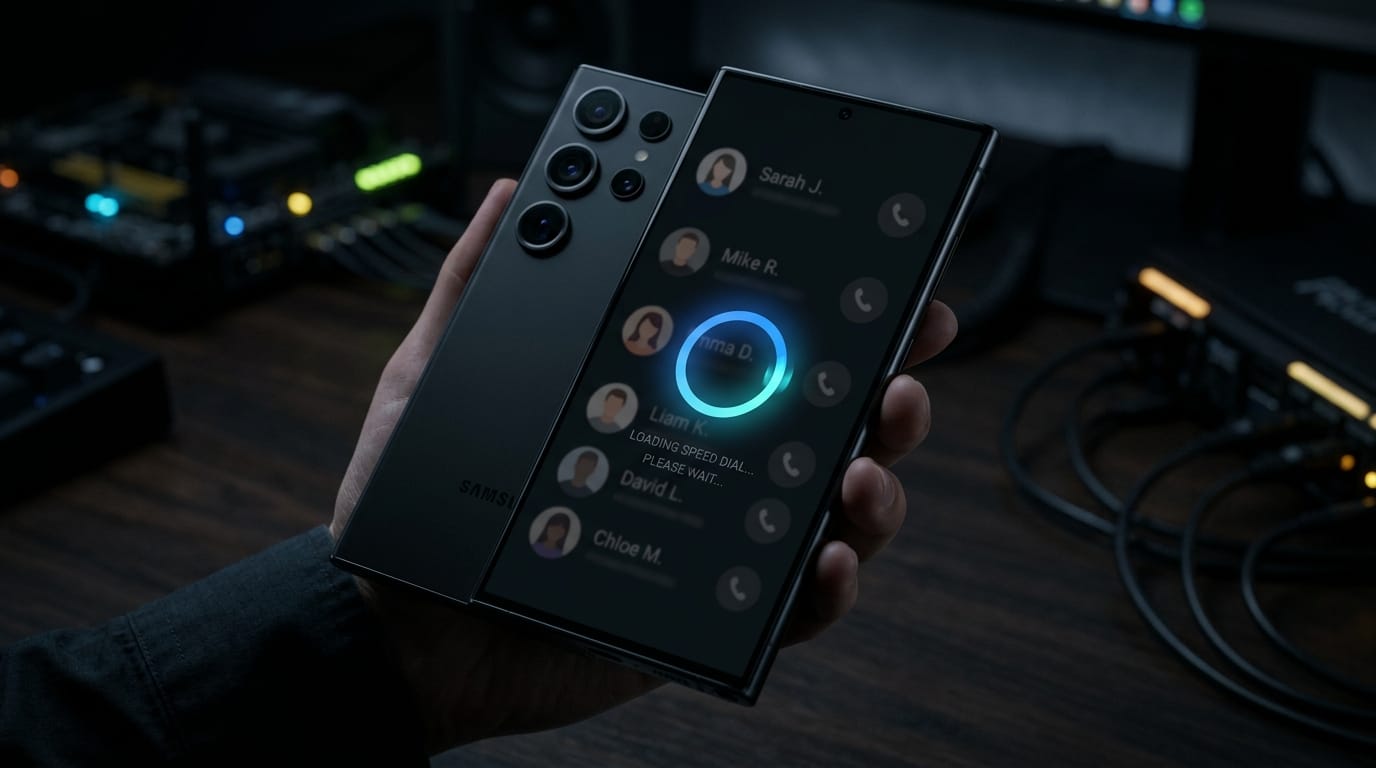
If your Samsung device starts stuttering right after a One UI or Android patch, you’re dealing with a routine software transition rather than hardware failure. Post-update slowdowns usually stem from background indexing, cached conflicts, or aggressive power management. You can restore snappy responsiveness without wiping your data.
Why Samsung Phones Lag After System Patches
New OS releases trigger several automatic processes that temporarily throttle performance:
- Background indexing: Android rebuilds app indexes and recalibrates battery profiles, pushing the CPU hard for a few hours.
- ART cache mismatches: Compiled code from the previous version clashes with the new runtime, forcing constant recompilation.
- Heavier visuals: Updated transition animations and higher refresh-rate rendering demand more GPU headroom.
- Silent bloatware activation: Background sync services often enable themselves by default following major upgrades.
How to Fix a Slow Samsung After an Update
1. Wipe the Cache Partition
This clears outdated system files without touching personal data. It resolves the majority of post-patch lag spikes.
- Power off the device completely.
- Hold Volume Up + Power until the Samsung logo appears, then release.
- Use volume keys to highlight Wipe cache partition, confirm with the power button.
- Select Reboot system now.
Expect a brief slowdown during the initial boot as the system optimizes caches for the new version. Normal speed typically returns within 10–15 minutes.
2. Reduce Animation Scales
Default transition speeds on newer One UI versions can make everyday navigation feel jittery. Dropping these values creates an instant perception of speed.
- Open Settings > About phone > Software information. Tap Build number seven times to unlock Developer Options.
- Navigate back to Settings > Developer options.
- Locate these three controls and change each from 1x to 0.5x:
- Window animation scale
- Transition animation scale
- Animator duration scale
Most users notice a smoother interface immediately after applying this tweak.
3. Disable Unnecessary Bloatware
Preloaded apps drain RAM and cycle the processor even when idle. Streamlining them frees up critical resources.
- Go to Settings > Apps and sort by size.
- Uninstall anything you rarely use (Tizen, Samsung Pay, Secure Folder).
- For non-removable apps, tap App info > Disable.
Focus heavily on the Samsung category. Many of these services re-enable background syncing automatically after major updates.
Optimize Battery & Storage Limits
Aggressive power-saving modes introduced in recent One UI builds restrict background activity, which paradoxically slows down frequently used apps.
- Head to Settings > Battery and device care > Battery > Background usage limits.
- Add essential apps to Never sleeping apps.
- Switch from Adaptive Power Saving to Basic Power Saving during intensive tasks like gaming or video editing.
Storage congestion also degrades flash memory performance. When usage crosses 85%, file fragmentation forces the controller to work harder.
- Maintain at least 15% free space via Device Care > Storage.
- Delete cached YouTube/Netflix videos regularly.
- Offload photos to Google Photos or cloud backups.
Quick Reference Guide
| Fix | Time Required | Typical Impact |
|---|---|---|
| Clear cache partition | 2 minutes | High (immediate) |
| Reduce animations | 2 minutes | High (instant feel) |
| Remove bloatware | 10 minutes | Medium-High |
| Adjust power saving | 5 minutes | Medium |
| Free up storage | Variable | Depends on available space |
If lag persists after applying these steps, check for a follow-up patch. Manufacturers routinely release quick-fix updates within weeks to address early-stage bugs and performance regressions.