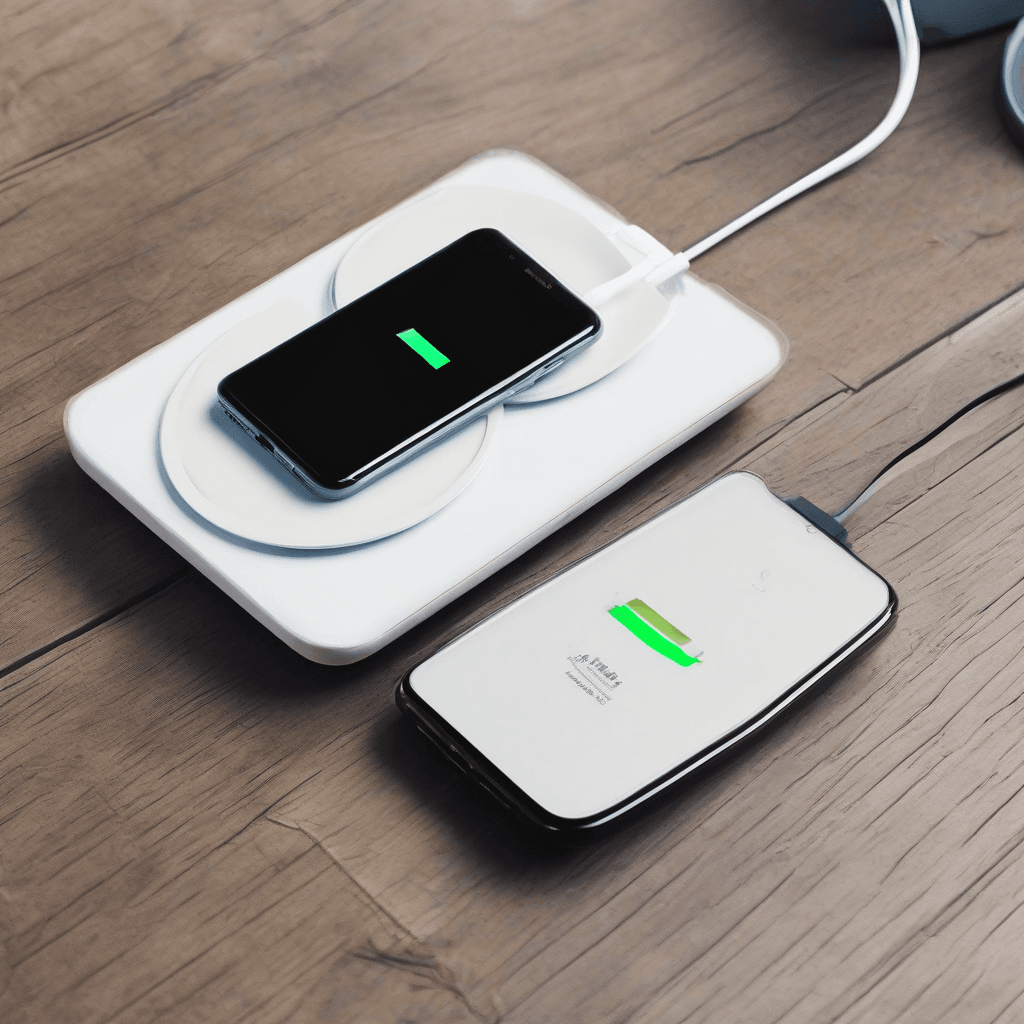
The iPhone 16 Pro Max runs warm during power-ups, especially when paired with iOS 26’s current power management layer. Users frequently report that the device gets hot while charging, followed by noticeable keyboard stutter and app freezes when switching between tasks. This behavior stems from aggressive thermal throttling on the A18 Pro chip, not a hardware defect. Below are tested steps to restore smooth performance and stable temperatures.
Why the iPhone 16 Pro Max Overheats During Charge
Fast charging delivers rapid energy, but the 16 Pro Max’s titanium frame and glass back can trap excess heat under specific conditions. Three factors drive the temperature spike:
- iOS 26 background scheduling bug — Versions 26.0 through 26.2 fail to throttle non-essential processes correctly during power delivery, forcing the SoC to run hotter than intended.
- Concurrent workload + charging — Streaming, gaming, or video calling while plugged in stacks CPU demand on top of charging thermals.
- Insulated protective cases — Thick silicone, leather, or wallet-style covers restrict passive heat dissipation through the rear chassis.
When the system detects elevated temperatures, iOS applies heavy thermal throttling. The result is dropped frame rates, delayed touch response, and the keyboard stutter you’re experiencing.
Step-by-Step Fixes for Heat, Lag, and Freezes
1. Remove Your Case While Plugged In
Heat escapes through the back glass and titanium rails. A case acts as an insulator, trapping that energy inside. Take the cover off before connecting your cable. If you need daily protection, switch to a thin polycarbonate or TPU shell. Avoid multi-layer or magnetic wallet designs during charge cycles. Allow the device to cool for two minutes before plugging in.
2. Enable Charging Optimization in iOS 26
iOS 26 introduced a dedicated power regulation toggle that slows voltage delivery past the 80% threshold. This cuts peak temperatures without sacrificing overnight charging completion.
- Navigate to Settings → Battery → Charging
- Select Charging Optimization
- Pick Optimized Charging (avoid Fast Charging mode)
- Turn Limit Charging Above 80% ON
The phone will finish topping off gradually, keeping the A18 Pro chip within safe operating temps.
3. Clear Background Apps Before Powering Up
Leaving dozens of apps suspended in RAM forces iOS to constantly sync data while simultaneously managing power input. This dual load triggers the app freezes you’re seeing.
- Swipe up from the bottom edge and pause to open the App Switcher
- Swipe upward on each preview card to force-close it
- Connect your charger only after the screen returns to the home view
Closing active sessions removes unnecessary CPU overhead, instantly resolving touch latency.
4. Install iOS 26.3 or Newer
Apple shipped iOS 26.3 with a targeted patch for thermal management during charging on the 16 Pro Max. Devices running 26.0 through 26.2 should prioritize this update.
- Go to Settings → General → Software Update
- Tap Download and Install if version 26.3+ appears
- Leave the device connected until the progress bar completes
Expect 10–15 minutes of warmth post-installation while Spotlight reindexes files. Normal charging temperatures return after the first full cycle.
5. Switch to a Lower-Wattage USB-C Adapter
Maximum wattage isn’t required for daily use. Dropping to 20W–30W significantly reduces heat output while maintaining practical charge speeds.
| Adapter Type | Recommended? | Notes |
|---|---|---|
| Apple 20W USB-C (MDY-13) | Yes | Ideal balance of speed and thermal control |
| Anker Nano II 30W | Yes | Compact design, stays cool under load |
| 40W+ GaN Chargers | Avoid in heat | Excessive voltage spikes above 30°C / 86°F |
| Laptop USB Ports | Avoid | Inconsistent PD negotiation increases thermal stress |
6. Restrict Background App Refresh
Social media and news apps continuously fetch data in the background. Combined with charging, this creates constant network activity and CPU wake cycles.
- Open Settings → General → Background App Refresh
- Set to Wi-Fi Only or Off during charge sessions
- Re-enable once unplugged
Alternatively, build a Focus profile named “Charging” that auto-disables background refresh and lowers screen brightness when power is detected.
7. Recalibrate the Thermal Sensor
Some iOS 26.0–26.2 units misreport ambient temperature, triggering premature throttling. A full charge cycle plus hard reset resets the thermal controller.
- Let the device rest at room temperature (20–25°C / 68–77°F)
- Charge uninterrupted to 100%
- Keep it plugged in for 30 additional minutes
- Force restart: Volume Up → Volume Down → Hold Side Button until the Apple logo appears
- Unplug and resume normal use
This sequence clears false thermal readings and restores accurate CPU scaling.
When to Contact Apple Support
Apply the steps above first. Reach out to professionals if you notice:
- Battery health dropping below 90% within six months of purchase
- Chassis temperature that becomes uncomfortable to hold for more than a minute
- Unexpected shutdowns occurring exclusively during power delivery
These symptoms may point to a defective cell or logic board fault. The 16 Pro Max carries a one-year limited warranty, with battery replacements covered if capacity falls under 80%. Schedule a Genius Bar visit or start a live session at support.apple.com.
Start with case removal and optimized charging settings. Most users eliminate the keyboard stutter and app freezes by combining those steps with a quick background cleanup. If you’re still on iOS 26.0–26.2, push the 26.3 update immediately. Apple confirmed the thermal patch resolves the underlying scheduling bug. Save this reference for future updates—software behavior adjustments rarely require hardware service.