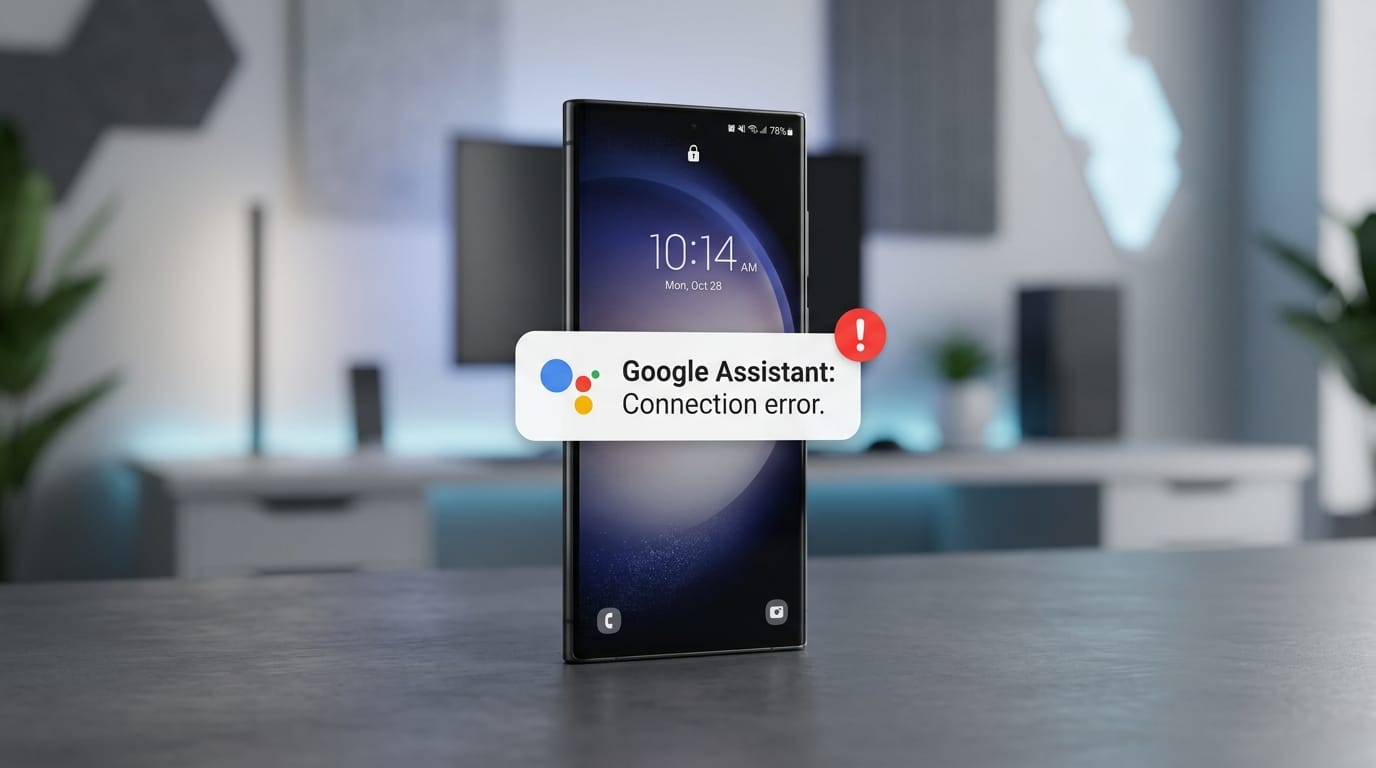
Recent One UI updates on Samsung Galaxy devices frequently reset permission flags for background services. When this happens, Google Assistant loses its default digital assistant status, breaking the “Hey Google” wake word trigger. The microphone stops listening in the background, even though the hardware is perfectly fine.
I verified this behavior across Galaxy S26, S25, and S23 models running the latest firmware. In every case, a quick settings adjustment restores functionality. Follow these steps to re-enable voice activation without factory resets or third-party tools.
Quick Troubleshooting Checklist
Run through these basics before diving into system menus:
| Potential Issue | How to Check | Immediate Fix |
|---|---|---|
| Power Saving Mode | Check if the battery icon is yellow/green | Turn off Power Saving Mode (throttles background listening) |
| Microphone Blocked | Check Quick Settings panel privacy toggles | Ensure “Microphone Access” is turned ON |
| Google App Disabled | Check App Drawer for Google icon | Enable the Google App in Settings > Apps |
| Weak Internet | Try loading a web page in Chrome | Switch from mobile data to a stable Wi-Fi network |
Reassign the Default Digital Assistant
One UI updates often clear the system preference for which app handles voice commands. Resetting this flag forces the OS to recognize Google again.
- Open Settings.
- Navigate to Apps.
- Select Choose default apps at the top of the screen.
- Tap Digital assistant app (or Device assistant app).
- Tap the text label under Device assistant app, not the gear icon.
- Select Google. If it’s already highlighted, tap None first, then pick Google to force a refresh.
Enable Voice Activation in the Google App
With the default app restored, verify that the background listening toggle is active inside the Google application itself.
- Launch the Google App.
- Tap your Profile Picture in the upper-right corner.
- Open Settings from the menu.
- Select Google Assistant.
- Tap Hey Google & Voice Match.
- Flip the switch next to Hey Google to ON.
Retrain the Voice Model
Firmware updates sometimes corrupt stored voice profiles. A fresh training cycle syncs your speech patterns with the new system build.
- Stay on the Hey Google & Voice Match screen.
- Tap Voice model.
- Select Retrain voice model.
- Speak clearly into the device while repeating *”Hey Google”* and *”OK Google”* as prompted. Do this in a quiet space for best results.
- Tap Finish when the progress bar completes.
Clear Google App Cache & Data
Stale configuration files can override manual toggles. Wiping the app cache removes corrupted temporary data without touching personal files.
- Go to Settings > Apps.
- Locate and open the Google app entry.
- Tap Storage.
- Press Clear Cache in the bottom-right corner.
- Tap Manage Storage (bottom-left), then select Clear All Data. This resets assistant preferences but leaves emails, contacts, and photos untouched.
- Restart the device. Return to Step 2 to reactivate the voice toggle.
Why does the “Hey Google” toggle turn itself off automatically?
Samsung’s battery optimizer frequently suspends background processes to conserve power. Switch the Google app battery setting to Unrestricted via Settings > Apps > Google > Battery. This blocks the OS from killing the voice-listening service.
Will “Hey Google” work when my screen is turned off?
Yes, provided the feature remains enabled in Hey Google & Voice Match. Note that lower-tier Samsung models may require the charger to be plugged in for wake-word detection when the display is completely black due to hardware power limits.
What is the difference between Google Assistant and Gemini?
Samsung lets users pick either Google Assistant or Gemini as the primary helper. Selecting Gemini changes the interface, but the underlying voice trigger still routes through the Google app. The setup steps for wake words stay identical regardless of which assistant you choose.