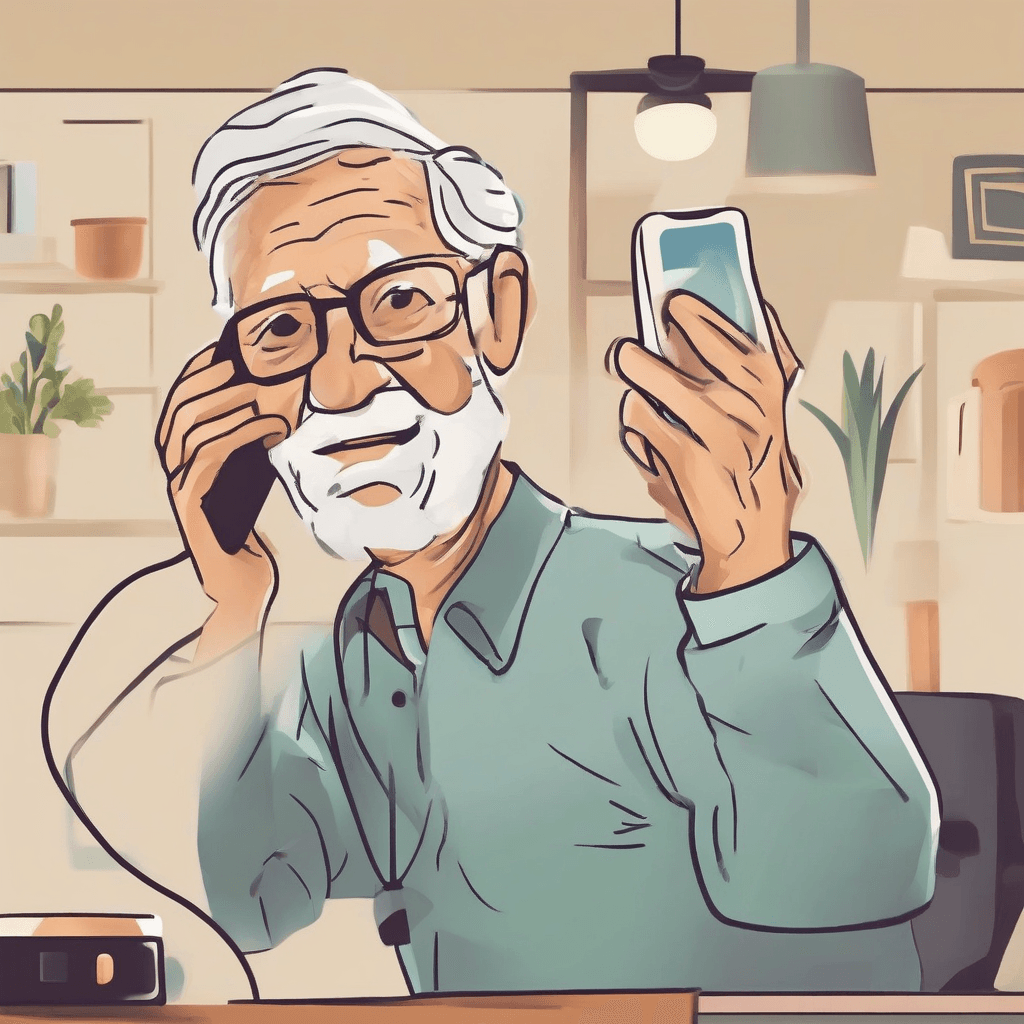
Modern smartphones pack in curved screens, swipe gestures, and deep settings menus that overwhelm older adults. Small text, sensitive touch targets, and cluttered home screens turn everyday tasks into frustrating hurdles. Yet staying connected matters—calling family, managing appointments, and accessing emergency support shouldn’t require a tech degree. In 2026, manufacturers have finally prioritized accessibility. Whether you’re upgrading your own device or helping an aging parent, here’s what actually matters when shopping for an easy-to-use smartphone.
What Makes a Phone Senior-Friendly?
Skip benchmark scores and camera megapixels. Focus on three practical areas that directly impact daily use:
Screen Clarity & Navigation
Bright displays with high-contrast modes are non-negotiable. Look for devices that let you scale fonts without breaking app layouts. Physical buttons or a stripped-down launcher beat swipe-heavy interfaces every time. Consistency reduces guesswork.
Hearing Aid Compatibility & Audio
Check HAC ratings before buying. Aim for M4/T4 ratings to pair smoothly with hearing aids. A loud speakerphone and VoLTE support cut through background noise during calls.
Grip, Weight & Emergency Buttons
A textured back or lightweight frame prevents drops. Many dedicated senior models include a physical SOS button on the rear. One press dials emergency contacts, shares GPS location, and blasts audio through the speaker.
Pro Tip: Accessibility Shortcuts
Both iOS and Android let you assign shortcuts to power or volume buttons. Triple-clicking can instantly launch the Magnifier (which reads printed text via camera) or Screen Speak for hands-free navigation.
Top Picks for 2026
These models cover different comfort levels, from full smartphones to classic flip designs:
Lively Jitterbug Smart4
Built specifically for older users, this 6.7-inch phone runs a custom interface. Apps appear in a single vertical list with large text. Voice typing, a rear SOS button, and direct links to Lively’s health services keep medical support one tap away.
Samsung Galaxy A16 / A26
Budget-friendly and built to last, Samsung’s A series shines when you enable Easy Mode. It enlarges icons, extends touch-and-hold delays to stop accidental taps, and switches to a high-contrast keyboard. You get flagship-level updates with a simplified experience.
Nokia 2780 Flip
Touchscreens aren’t for everyone. This flip phone delivers tactile keys, backlit buttons, a clear inner display, and caller ID on the outside screen. It runs on 4G for crisp calls and lasts days on a single charge.
Watch Out for Charging Ports
Fine motor skills matter. Standard USB-C cables can frustrate users with arthritis. Opt for drop-in charging docks or magnetic cables that snap into place without aiming.
Quick Comparison Table
| Phone Model | Form Factor | Key Strength | SOS Button | Hearing Aid Rating | Price Range |
|---|---|---|---|---|---|
| Lively Jitterbug Smart4 | 6.7″ Smartphone | Custom list menu, urgent care access | Yes (Physical) | M4 / T4 | $149 (plus plan) |
| Lively Jitterbug Flip2 | Flip Phone | Massive physical buttons, voice dialing | Yes (Physical) | M4 / T4 | $99 (plus plan) |
| Samsung Galaxy A series | 6.5″+ Smartphone | Easy Mode, great camera, standard apps | Yes (Software shortcut) | M3 / T3 | $150 – $250 |
| Nokia 2780 Flip | Flip Phone | Classic layout, FM radio, no internet bloat | No (has shortcut key) | M4 / T4 | $80 |
| iPhone SE (with Assistive Access) | 4.7″ Smartphone | Premium build, simple block interface | Yes (SOS call via button) | M3 / T4 | $429 |
Setup Guide: Preparing a Smartphone for Daily Use
Setting up a standard Android or iPhone takes five minutes. Follow these steps to lock in a stable, error-resistant experience:
Step 1: Clear the Home Screen
Delete unused apps, widgets, and folders. Pin only essentials like Phone, Messages, Photos, and WhatsApp. Lock the layout in settings to prevent accidental rearrangements.
Step 2: Scale Text & Icons
iOS: Settings > Accessibility > Display & Text Size > Larger Text > toggle Larger Accessibility Sizes. Samsung: Settings > Display > Easy Mode > enable. Both methods enlarge UI elements without breaking apps.
Step 3: Load Medical & Emergency Data
Complete the Medical ID profile with blood type, allergies, and medications. Set up emergency SOS (usually five rapid power presses) to alert contacts and share live location automatically.
Step 4: Adjust Touch Response
In accessibility settings, increase Touch and Hold Delay to Medium or Long. This filters out light taps and hand tremors, cutting down on misdialed numbers or stray clicks.
Final Recommendation
Match the device to actual habits, not marketing specs. Video calls and photo sharing point toward a streamlined smartphone like the Jitterbug Smart4 or a Galaxy A model with Easy Mode. If voice calls and pocket reliability are the only goals, a flip phone like the Nokia 2780 removes digital friction entirely. Pick the tool that fits their routine, and setup becomes straightforward.